Showing posts with label weblogic 11. Show all posts

Thursday, February 14, 2013

How to create data source in WebLogic


This a tutorial about how to create a WebLogic Data Source.
1.      Log in to WebLogic Admin console.
2.      Click “Lock & Edit” in the left pane.
3.      Under “DOMAIN STRUCTURE” on the left, Drill down and click “Services -> Data Sources”

4.      On the right, click “NEW” (it has a drop-down arrow) -> “GENERIC DATA SOURCE” 
5.      There are three things to be filled out in the next screen - Name, JNDI Name, and Database Type. Fill them out as per your requirement and click NEXT.
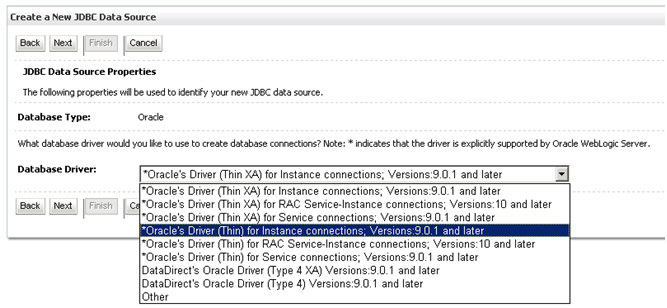
6.      For Database Drive, choose the one as per requirement. In my case, I have chosen “Oracle’s Driver (Thin) for Instance Connection.” Click Next. 
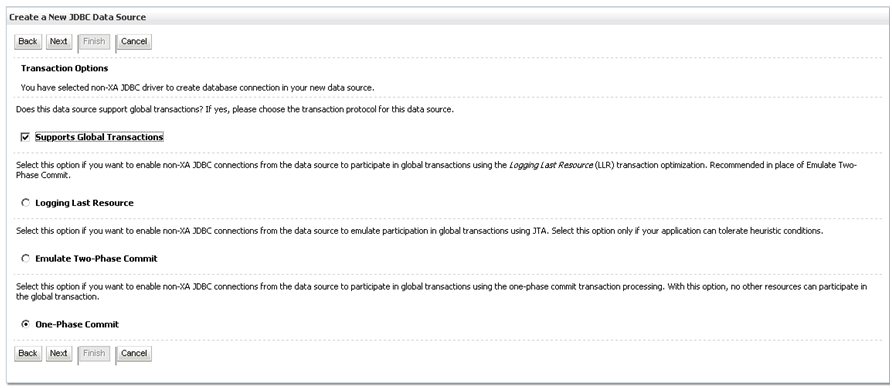
7.      For the “Transaction Options” look at Oracle’s documentation regarding Transactions. It depends on the company’s requirements. Leave default in this case. Click NEXT. 
8.      On the screen that follows, enter the DATABASE NAME, HOST NAME, PORT, DATABASE USER NAME, and PASSWORD. Click NEXT.
9.      We will get the following “TEST DATABASE CONNECTION” screen where we can test the configuration. 

10.  Click “TEST CONFIGURATION” to test. If it passes, it will show a green check mark. 
11.  Click FINISH.  


Monday, February 11, 2013

How to start Oracle WebLogic

This is a tutorial regarding how to start Oracle WebLogic. WebLogic installation/configuration is automatic during EPM version 11 installation configuration, and we do not need to do much about it. However, knowing how to Launch WebLogic application comes in handy at times.

In order to start WebLogic, we need to first:
1.       Start WebLogic Server
2.       Launch the Administration Console
Starting WebLogic Server
  1. 1        Start COMMAND PROMPT
  2. 2.       Navigate to the domain directory, BEA_HOME/user_projects/domain_name (in my case, for example, the path is D:/Oracle/Middleware/User_projects/domains/EPMSystem1)
  3. 3.       Run the startup script – startWeblogic.cmd
  4. 4.       The startup script displays a series of messages. Finally we will see a message that looks something like this:   

   <Feb 11, 2013 9:50:42 AM EST> <Notice> <WebLogicServer> <000360> <Server started in RUNNING mode>
  1. 5.       After the server has started, we can start the WebLogic Administration Console

Launching the Administration Console
  1. 1.       Open up a web browser, Internet Explorer, for example.
  2. 2.       Type in the WebLogic URL: http://hostname:portname/console (for example, if my hostname is normal the URL would be http://normal:7001/console) and hit enter.
  3. 3.       The WebLogic login page opens up. 
  4. 4.       Type in the username and password
  5. 5.       Now w are in WebLogic.

      The default ports for WebLogic server are: 7001 and 7002 for HTTP and HTTPS respectively.