Thursday, December 27, 2012

Hyperion Planning Maintenance Mode – How to


In Hyperion Planning, read-only mode is very useful especially when we are doing some changes in the Planning hierarchy or outline, and it is also useful while we are doing data loads. Since we don’t want users to get into the system during these activities, we can set planning applications to maintenance mode so that the application users and planners are locked out of application.

The steps in taking Planning to maintenance mode:

Log on to Planning Workspace.

Open up an application.

On the Menu bar, choose ADMINISTRATION ->  APPLICATION -> SETTING


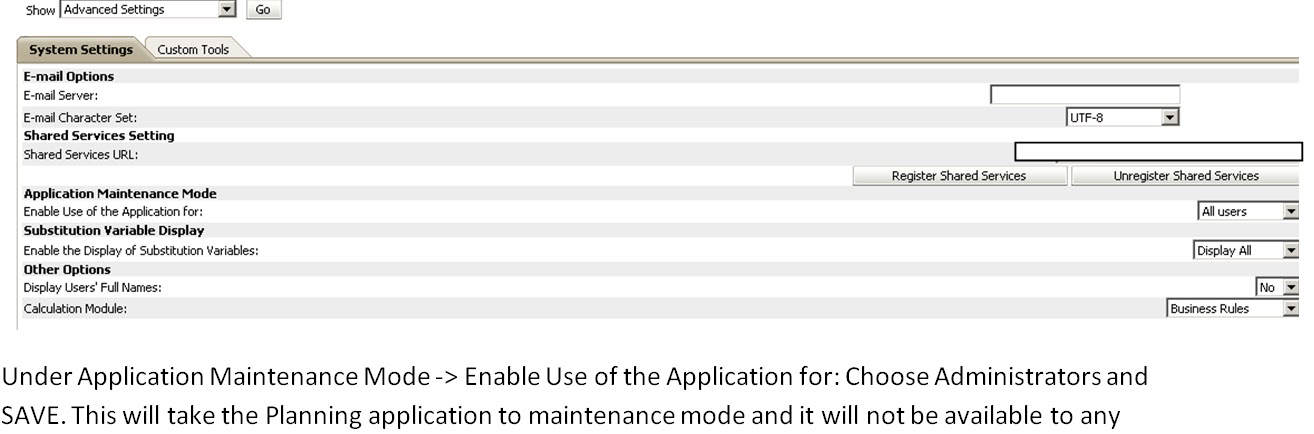
We will see the following screen.


Under Application Maintenance Mode -> Enable Use of the Application for: Choose Administrators and SAVE. This will take the Planning application to maintenance mode and it will not be available to any users below the rank of the administrators.

ExportSecurity ImportSecurity in the Hyperion Environment

Nikon Coolpix L810 16MP 26X Optical Zoom Black Digital Camera (Google Affiliate Ad)

In Hyperion Planning ExportSecurity and ImportSecurity are two very important utilities that can be used to give access to users.

They reside in the bin folder, therefore, in terms of Hyperion 11.1.2, it should be somewhere around D:\Oracle\Middleware\user_projects\epmsystem1\planning\planning1 (this is the regular path and one that we have in our environment, it may be a little different depending on how it is installed in your work environment). 

ExportSecurity exports the security features and creates a SECFILE.TXT file inside the BIN folder and ImportSecurity imports the security that is present in the SECFILE.TXT file to the specified application. For example, if you have a user called SAM whose access you want to export and import to user HARRY, then you need to use the ExportSecurity command with SAM and then use the ImportSecurity with user HARRY.

Please look at the syntax below. 

In order to run the command, please open the COMMAND PROMPT and go to the BIN folder.

ExportSecurity.cmd /A=applicationname, /U=adminusername, /S_USER=SAM

The above command creates a SECFILE.TXT inside the BIN folder. What you need to do here is open the file, change the username from SAM to HARRY, and save the file. 

If you want to export an application's overall security file, the syntax would be:

ExportSecurity.cmd /A=applicationname, /U=adminusername

This command exports the application overall security file and output a secfile.txt.

A batch script is of great significance if you have a lot of applications.
In my case, I have a batch file which I have named "KHOONKSSEC.BAT"
______________
REM Export security for the KHOONKS planning application


CALL D:\oracle\Middleware\user_projects\epmsystem1\Planning\planning1\ExportSecurity.cmd /A=KHOONKS,/U=ADMIN

We can specify the output file name/location by using the parameter "TO_FILE"
In the following example,
username is nirmal, application is khoonks, and we would like to export the resulting security file to a file named "mysec.txt" in E:\my_folder.
So the syntax would be something like:
ExportSecurity.cmd /A=khoonks,/U=nirmal,/TO_FILE=E:\\my_folder\\mysec


Moreover, we can also use the (-f) option to encrypt the password while doing the security export. In this case the syntax of a batch script to call the ExportSecurity.cmd would look something like:

call D:\oracle\Middleware\user_projects\epmsystem1\Planning\planning1\ExportSecurity.cmd -f:D:\oracle\Middleware\user_projects\epmsystem1\Planning\planning1\passwordFile /A=appname,/U=ADMIN,/TO_FILE=E:\\samplefolder\\subfolder\\mysec_secfile

The above script will create a file called mysec_secfile.txt inside the "subfolder" folder in the specified path. 

NOTE: In the above example, there is a space before "-f" and after "passwordFile"
The utility is very sensitive in terms of case and spaces. Therefore, make sure they are correct. 
_________________

Now that I have a batch file, I do not have to go to the BIN folder and type the syntax each time I want to export security, I can simply run the Batch file. Now you can enter the ImportSecurity command.

ImportSecurity.cmd “appname, username, password”

Security can be removed from Planning application by running the following ImportSecurity command -
ImportSecurity.cmd "MYAPP,ADMIN,,,,SL_CLEARALL"  - where MYAPP is the name of the application and ADMIN is the username. 
NOTE - make sure to have the four "commas"